This is a little collection of information about using Mac computers in NUS (and SoC). Macs work pretty well here, as long as you know how to get it configured correctly. There are four main topic areas covered here:
- Wireless Network
- Exchange Email
- Network Printing (particularly for printing to SoC printers, updated to include Lion and Mountain Lion support)
- Network Drives (NUSNET H: drive or SoC UNIX server)
That should be pretty much the main things you’ll need to know. There are some additional topics covered in Part 2 so that this page will not become too cluttered. If you’re looking to use the Mac for programming, check out Setting Up Your Mac For Programming.
Wireless Network
The first thing is to get onto the network. Nothing works without the network.
The official wireless network you should use is the one that goes by the SSID of NUS. You can also use eduroam if you see it, but it’s primarily meant for users who are roaming to NUS from other participating educational institutions. If you use NUSOPEN, don’t use it, it’s an insecure legacy network that should be pretty much extinct by now.
- If you’re lucky, when you open up your Mac inside the NUS wireless coverage area, you will automatically be offered to join the NUS SSID wireless network. If you see a window pop up like below, click on NUS, then click Join.
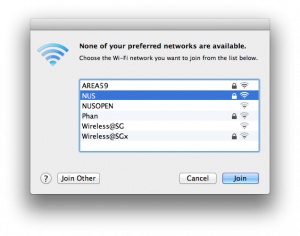
- If not, click on the wireless icon in the menu bar, and look for NUS listed in the available networks. Click on NUS. If NUS is still not listed, look further below for manual configuration instructions.

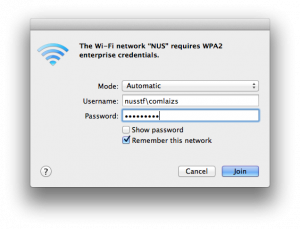
- You will be asked to enter your credentials. Leave the Mode at Automatic, and enter your NUSNET userid and password in the Username and Password boxes. Remember that your NUSNET username must be in <domain>\<userid> format (i.e. nusstf\xxxxxxxx for staff, nusstu\xxxxxxxx for students, etc).
- You’re done.
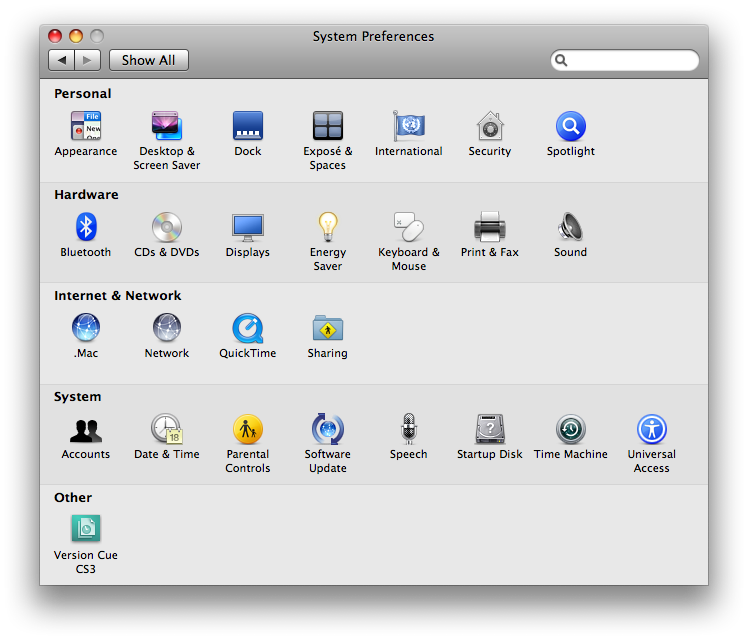
- Start System Preferences.
 Click on Network (under Internet & Network).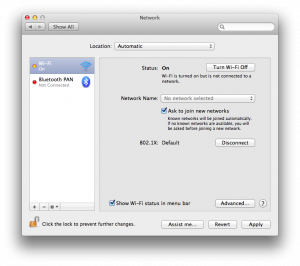
- On the left panel, click on Wi-Fi (or AirPort), and then click on Advanced.
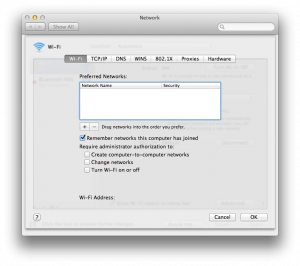
- Click on the + sign.
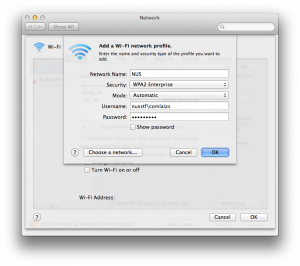
- For the Network Name, enter NUS.
- For Security, select WPA2 Enterprise.
- Enter your NUSNET username and password in the Username and Password boxes. Remember that your NUSNET username should be in <domain>\<userid> format (nusstf\xxxxxxxx for staff, nusstu\xxxxxxxx for students, etc).
- Click Ok.
- The new NUS configuration will now be listed in the Preferred Networks list. If you have other wireless network configured, you can drag the NUS item to prioritize which network your Mac will use when multiple wireless networks are detected.
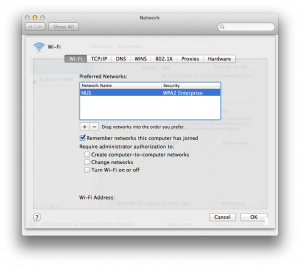
- Click OK.
- Click Apply. Quit System Preferences.
- You’re done.
This is a Mac guide. But if you’ve a N95 or N95 8GB, configuration information is available here. The information will probably be useful for most modern Symbian based phones (Nokia, Sony Ericsson, etc). iPhone users can refer to Lester Chan’s guide. For Linux Users, you should pretty much know how to self-support.
Exchange Email
Here’s how to access your NUSNET Exchange email from Mac OS X’s Mail application. (This assumes Mac OS X 10.6 Snow Leopard which supports Exchange 2007. If you have an older Mac OS X, please refer to Exchange Mail with Leopard.)
- Start the Mail application.
- Press Command-comma.
- Press the + sign.
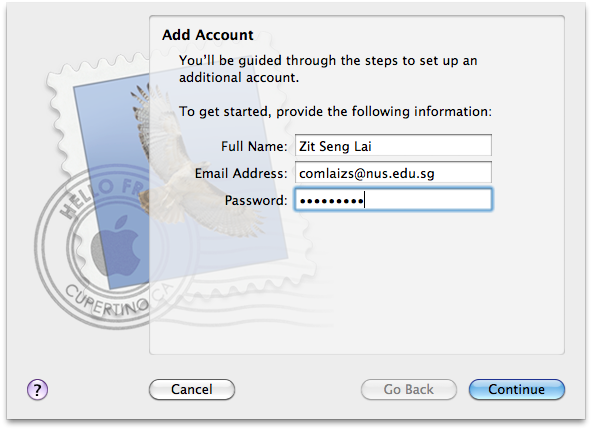
 Type in your Full Name, NUSNET account userid and password. The NUSNET account userid should be in xxx@nus.edu.sg format. Note that the xxx must be your real NUSNET account userid, not the nice email address that you can choose. (E.g. I must use comlaizs@nus.edu.sg, not lzs@nus.edu.sg in this Email Address box.)
- Click Continue.
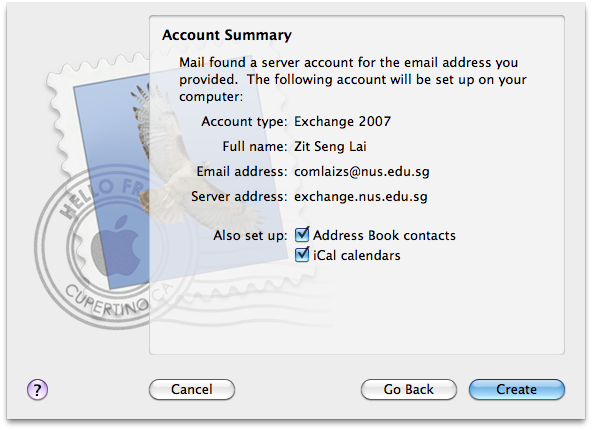
 Everything is auto-configured with Exchange 2007, so you go straight into the Account Summary screen. Choose to also select Address Book contacts and iCal calendars, if you want integration with the Exchange contacts and calendar. Click Create.
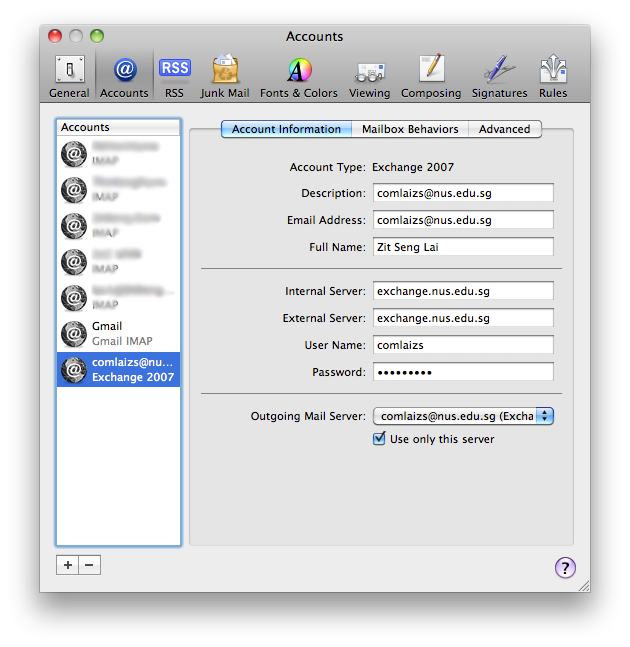
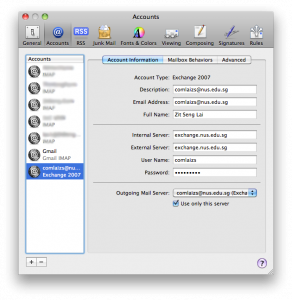 Back in the Accounts window, you can edit the new account settings if needed. For example, you might want to change the Description and Email Address. At this point, you can put the “FriendlyMail” email address which you have selected into the Email Address field. When you are done, just close the window. If you made changes, you will be prompted to save the changes.
You’re done. The Mail application should now connect to your Exchange account, grab the list of folders, synchronize email, etc. If you had chosen to, you will find the Exchange directory and calendar accessible in the Mac’s Address Book and iCal applications too.
Printing
Here’s how to configure printing on Mac OS X to use the printers/print queues in SoC.
- Start System Preferences.
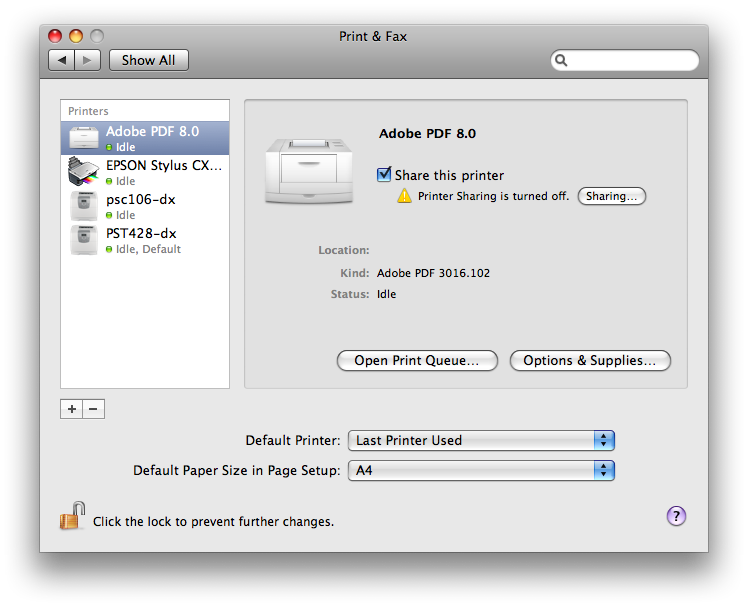
- Click on Print & Fax.
 Click the + sign.
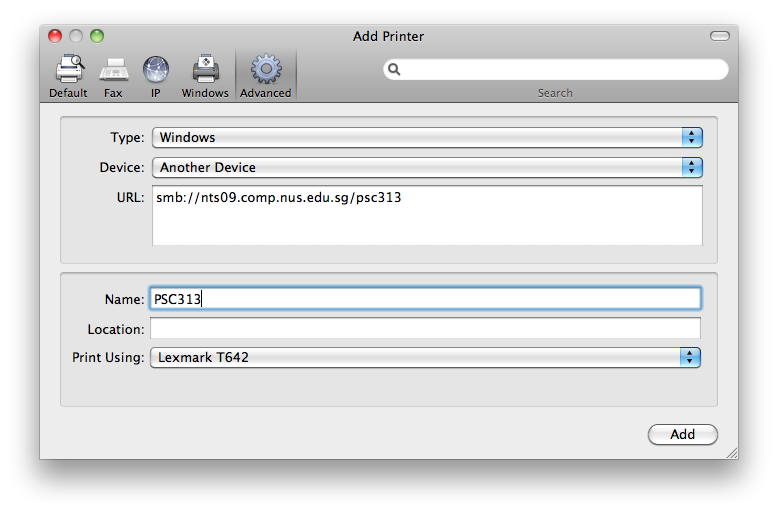
 If there is no Advanced button in the toolbar, you may have to add it there before continuing. Right-click the toolbar (or Control-Click), then drag and drop the Advanced button to the toolbar.
- For Type, select Windows.
- The URL is the complicated bit. Make sure you get this right. The URL has the following format: smb://<nusnetid>:<password>@nusstu/nts27.comp.nus.edu.sg/<printername>
- where <nusnetid> is your NUSNET account name
- <password> is your NUSNET account password
- change nts27 to nts09 for staff users
- <printername> is the queue name of the printer which you can find listed at SoC Printers and Print Queues.
- For Name, enter anything you fancy to help you remember what print queue this is.
- Same for Location, whatever you fancy.
- For Print Using box, choose either the Generic PostScript Printer driver, or select the specific printer driver for the print queue. You can find the list of printer types at SoC Printers and Print Queues.
- Click Add.
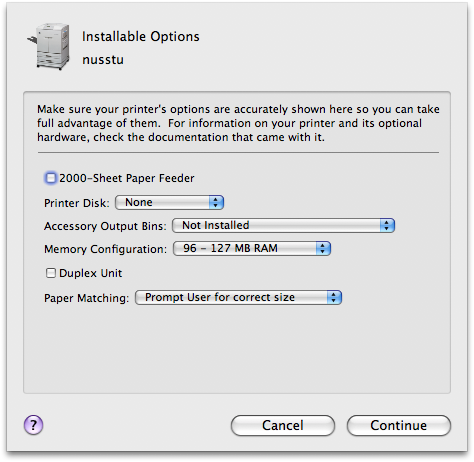
 Usually fine to leave the option settings unchanged.
- Click Continue.
That’s it. The first time you print, you will be asked to enter your account credentials. You can elect to save the credentials into the Keychain so that you don’t have to keep entering it in future.
Printing from Mac OS X Lion and Mountain Lion works too. But the steps are quite different. At this point, there seems to be no way to configure through the usual GUI. But it’s not too bad… you configure via a web-based system instead. Before going on, make sure you’ve got the Lexmark Print Drivers from Apple if you don’t already have them, and make sure you run Software Update too, just to make sure that everything’s up-to-date. Then, go ahead to start configuring your print queue:
- Point your web browser to http://localhost:631/.
- Click on Administration from the navigation tabs at the top.
- Click on Add Printer.
- If requested, authenticate with your Mac’s administrator account.
- Select “Windows printer via spoolss”. Then click Continue.
- In the Connection box, enter the following string:
smb://DOMAIN;USERNAME:PASSWORD@SERVER/PRINTQUEUE
Replacing DOMAIN with your NUSNET domain (NUSSTF or NUSSTU), USERNAME with your NUSNET username, PASSWORD with your NUSNET password, SERVER with nts09.comp.nus.edu.sg (for staff) or nts27.comp.nus.edu.sg (for students), and PRINTQUEUE with the name of the print queue. Then click Continue. - Set any name you like in the Name field to help you remember what queue this is. Same for the Description and Location fields.
- Select the printer manufacturer in the Make field. Then, select the printer model.
- Click on Add Printer.
Done. Sounds scary but it works.
If you want to get a list of available printers, run this from the command line:
$ smbutil view //nts27.comp.nus.edu.sg/
Note: Watch out for special characters in your password. It might not go well with the smb connect string above. If you still have trouble connecting to the printer, try changing your password and keep special characters to a minimum. Obviously, ‘:’, ‘;’, and ‘@’ are not going to work since they are already used as delimiters in the string.
Network Drives
NUSNET provides one network drive, often referred to as the H: drive in Windows. SoC users also get another network drive from their SoC UNIX account. To access these drives from your Mac:
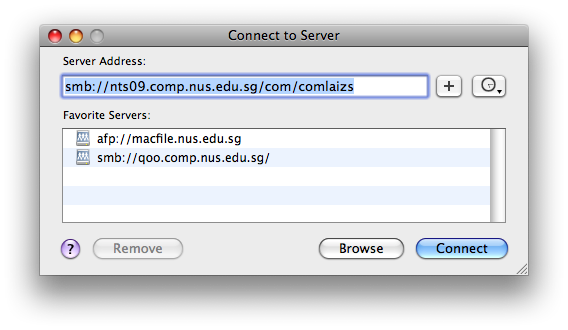
- Go to Finder, press Command-K.
 For the Server Address, enter the following: smb://nts09.comp.nus.edu.sg/com/comlaizs. This is the format for SoC staff users. For students, this is something like smb://fs5.nus.edu.sg/stuhome/u0x/u0x0xxxx.
- Just click Connect.
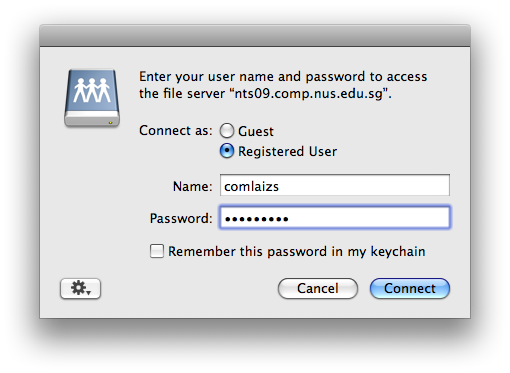
 You will be prompted for authentication. Entier your NUSNET account username and password here.
- Then click Connect.
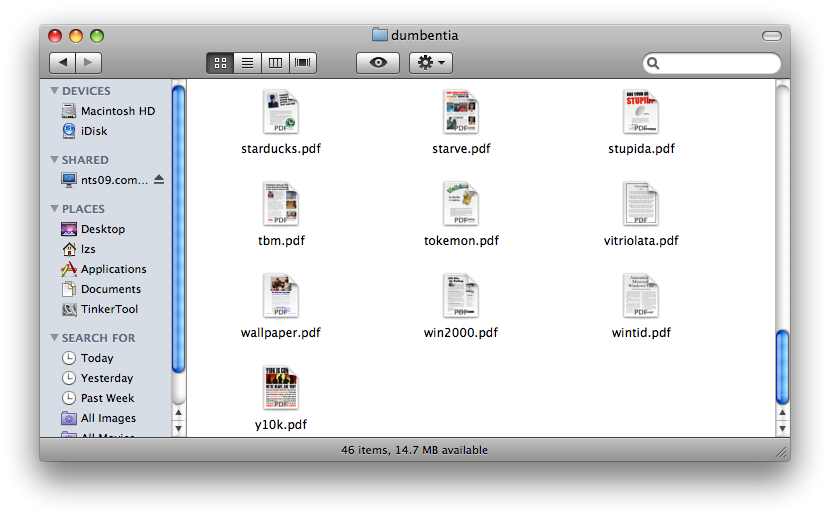
 You’ll see your network drive in Finder.
The Server Address for your NUSNET network drive tend to be varied, depending on whether you are staff or student, staff of which faculty, student undergrad or postgrad, etc. If you have more information to share, I’d be glad to update this page. You can also login to a Windows machine (and into your NUSNET account), and check how the H: drive is mapped using the NET USE command.
The Server Address format for SoC users, to access their Unix home directory on sunfire or suna, take the following format: smb://sunfire.comp.nus.edu.sg/<userid> (for students) and smb://suna.comp.nus.edu.sg/<userid> (for staff). You can also check out Browsing SSH/SFTP Servers Like SMB Network Shares for alternative ways to access your Unix home directories.
Other Stuffs
Here’s a bunch of other miscellaneous information that you may find useful.
- NUS Dialup (you gotta be kidding right?!):
- 6557-1070 for students
- 6657-1090 for staff
SoC Dialup:(already obsoleted)1800-7761022 toll-free for both SoC staff and students
- NUS VPN:
- The older Cisco VPN based on IPSEC protocol is deprecated. Best not to use it.
- The newer Web VPN: http://webvpn.nus.edu.sg/
- SoC-VPN:
- Head over to https://webvpn.comp.nus.edu.sg/.
That’s it.
Hi Zit Seng,
I just want to check if the synchronization of ical entries to the microsoft exchange is two-way? That means, if I add an event in ical, will the event appear in my microsoft exchange calendar?
Hi Kah Loon,
I just tried that, it works. This is on Lion.
Hi, realized Mac Lion works differently, can u provide the steps to configure 802.1X for mac lion???
I thought the steps are largely the same. If you’re in SoC areas, only the WPA2 Enterprise profile is broadcast, and Lion joins that network very easily. When prompted to login, just remember the username needs to be in “domain\nusnetid” format (e.g. nusstu\a0123456).
Thank you Zit Seng! You guide is very helpful!
If your password contains special character, just encode it (e.g., @ become %40)